Overview
Instructors and TA/Support Staff can copy either all course materials or selected content from a source course to an existing destination course: Blackboard Help: Copy Content from Other Courses
Please ensure that the course owner of both the source course and the destination course is the same. If you are not the course owner, you must obtain permission from the course owner before reusing the content.
Steps:
Ultra Course View
- Go to the target course.
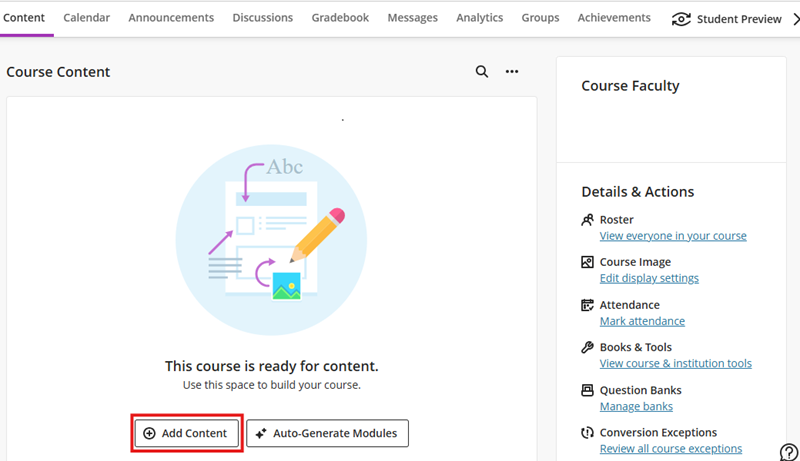
- If it is a blank course, on Content page, click Add Content. You may also click the plus icon or More options for course content (three dots) as mentioned in Blackboard Help: Copy Courses.
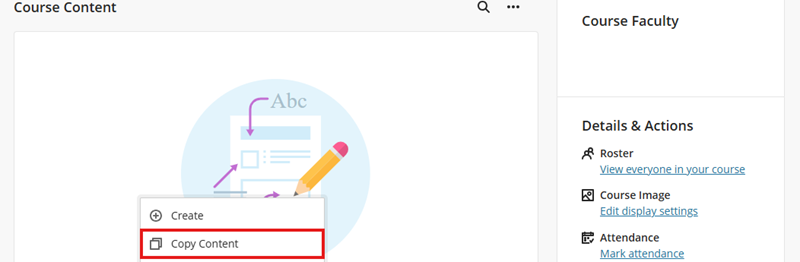
- Select Copy Content.
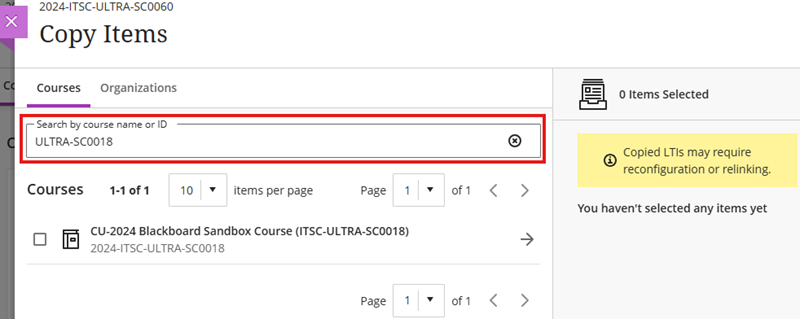
- Find the source course.
- Important: For best results, it is strongly recommended to copy from an Ultra course when the target is Ultra. To support this transition, ITSC copies and converts courses to Ultra format. For details about the arrangement, please visit: CUHK EdTech Help: Blackboard Ultra Preview Courses.
- Important: For best results, it is strongly recommended to copy from an Ultra course when the target is Ultra. To support this transition, ITSC copies and converts courses to Ultra format. For details about the arrangement, please visit: CUHK EdTech Help: Blackboard Ultra Preview Courses.
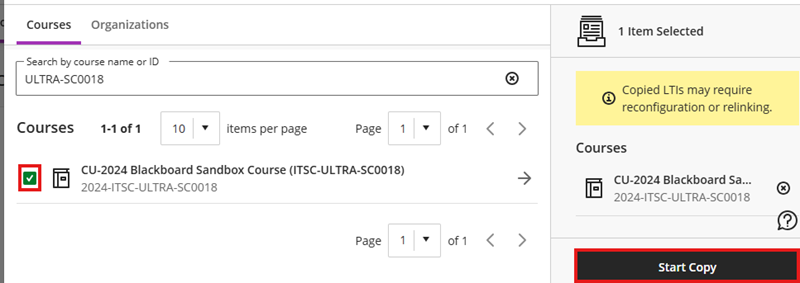
- To copy the entire course, select the checkbox next to the course name, then click Start Copy. (Note: Groups, announcements, and course settings will also be copied if you copy the entire course. If you have concerns, consider selecting and copying only the specific items, as demonstrated in the next step.)
- To copy specific parts of the course, click the course name. On the next page, search for and select the items you want to copy, then click Start Copy.

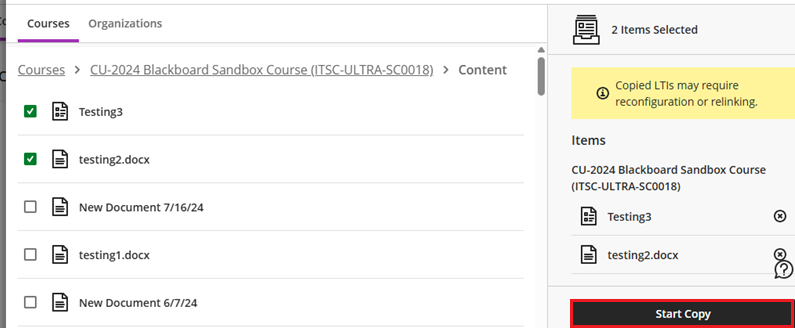
After copying, please check the destination settings, including visibility, release conditions, and the Gradebook (e.g. if the Overall Grade and Total columns will not be used, please consider hiding them from students).
For more, please refer to:
Special Notes:
-
Panopto videos would NOT be copied by Blackboard Course Copy function. You can copy Panopto videos following the instruction below:
-
First, access Blackboard Course > “Panopto Course Folder Tool” > click “Open in Panopto” (square with an arrow) on the right to access Panopto page for performing “Copy”. Then follow the steps as follows: Panopto Support: How to Batch Copy and Move Videos
-
In case you have added Panopto video links in Blackboard Content page, please be reminded to update the links in the destination course.
-
Contact us: elearning@cuhk.edu.hk / ITSC Service Desk (https://servicedesk.itsc.cuhk.edu.hk).